Rifify in Your AI Assistant: Track Stats Without Spreadsheets
28 Sep 2026
MCP (Model Context Protocol) is an open protocol that lets you connect external services and data to AI agents and assistants through a standardized interface. In simple terms, MCP is a way to connect a service to your AI assistant so it can fetch the data it needs and perform available actions on its own. For example, instead of manually exporting numbers and pasting them into a chat, you connect the service once, and from then on the assistant accesses it on request—without switching tabs, writing code, or configuring API keys each time.
Why MCP matters for artists
- Single window for data. Connect Rifify to your AI assistant and get up‑to‑date analytics on tracks, streams, and playlists directly in your working interface.
- Automated reports. An AI assistant with access to the Rifify MCP server can compile summaries on audience growth and listener geography.
- Fast insights. Ask your assistant questions like:
“How many listeners and followers do I have on Spotify?”
“How many streams does the track [Title] have, and how have they changed over the last month?”
“In which countries’ charts have my tracks appeared?”
“Which notable playlists have added my tracks?”
“Have I made it into Spotify editorial playlists?”
“Which countries are listening to me?”
“How has the number of playlists with my tracks grown over the year?”
You can continue the conversation naturally: the AI assistant remembers context, so follow‑ups can be short:
“Compare this to my last release.”
“Put this into a table.”
“Make a short summary for the label from this.”
How to connect the Rifify MCP server
The Rifify MCP server is available at: https://mcp.rifify.io/mcp
Connection steps
- 1.Make sure your AI assistant supports MCP. This could be Claude, ChatGPT, Cursor, Windsurf, Cline, or other compatible tools.
- 2.Ask your AI assistant to connect MCP at https://mcp.rifify.io/mcp.
- 3.Authorize in Rifify. Accessing data via MCP requires an active artist subscription in your Rifify account.
- 4.Verify the connection. Request artist data from your AI assistant: if the server is connected correctly, you’ll receive current analytics from Rifify.
Once connected, you can use all available tools from the Rifify MCP server to work with music analytics directly inside your AI tools.
What to do if MCP isn’t working
If your AI assistant can’t see Rifify data or can’t connect to the MCP server, check these common causes:
- Your AI assistant doesn’t support MCP. Confirm that your chosen tool can work with MCP servers.
- Restart the AI app after connecting. After adding the MCP server, fully restart the AI application or refresh the page—sometimes the connection only appears after a restart.
- The assistant hasn’t been granted access. If it asks for authorization or connection confirmation, complete that step.
- Wrong account. Ensure you’re using the correct account. If multiple accounts are open, sign out of the extras and log in again.
- No active subscription. Accessing data via MCP requires an active Rifify subscription.
- Artist not added to the subscription. Check that the needed artist is connected or added under your subscription in the Rifify dashboard.
- Server URL entered incorrectly. Make sure the exact address is used in settings: https://mcp.rifify.io/mcp.
- Access not confirmed. If the client requests authorization or connection approval, complete that flow.
- Query too vague. First ask the assistant to show the artists it has access to via Rifify, then ask about a specific artist or track.
- Data hasn’t updated yet. For very new releases or recent streams, wait for stats to refresh and try again later.
For a quick check, write to your assistant: “Show me the artists you have access to via Rifify.” If the list doesn’t appear, first verify authorization, subscription, and server connection, then restart the AI assistant. If these steps don’t resolve the issue, contact support at support@rifify.io.
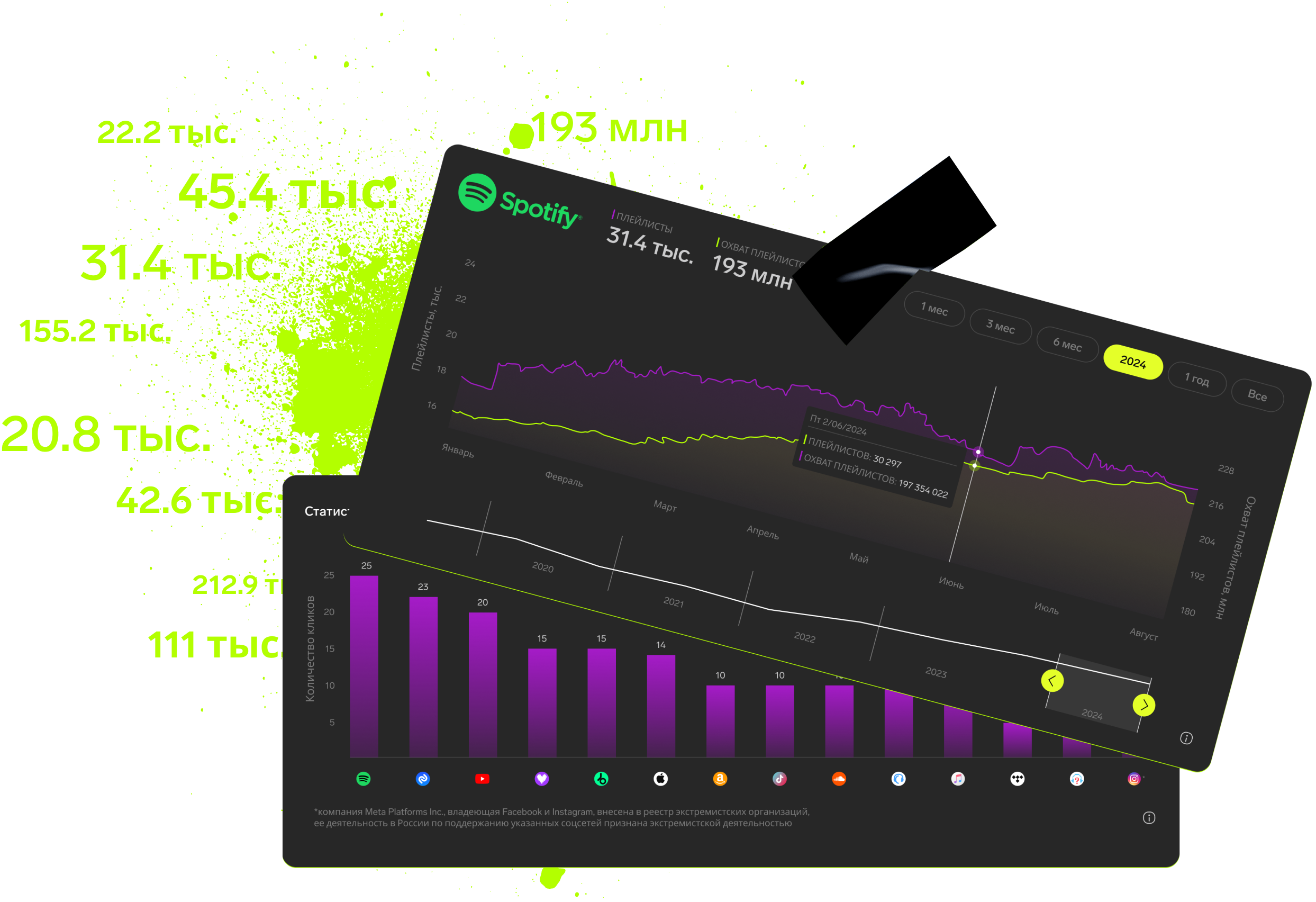
Subscription includes

Detailed track analytics
AI assistant
Real-time activity feed
Notifications about new streams, playlists and mentions
Automatically imported catalog
Pricing
Choose the right option and find out the final price
Maximum number of artists
Subscription duration
Total
$
Monthly cost per artist
$
By clicking the «Proceed to payment» button, you agree to the Privacy Policy
Couldn’t find the right option?